
2023年5月9日、午後9時15分にキャメロンによって更新されました
実際には、パーティションの損失には、誤った削除、予期せぬ停電、ウイルス攻撃、不良セクタ、データの破損など、多くの一般的な理由があります。削除または失われたパーティションとデータを回復するには、パーティション回復ソフトウェアを使用できます。問題を簡単かつ迅速に解決するのに役立ちます。多数のパーティション回復ソフトウェアの中から、パフォーマンス、回復成功率、セキュリティなどの要素に基づいて選択できます。時間とエネルギーを節約するために、トップ 10 の信頼できる無料パーティション回復ソフトウェアを提供しています。その中から、失われたパーティションを無料で回復するために最適なツールを選択できます。
削除または紛失したパーティションやデータを簡単に復元するツールをお探しの場合は、次の 10 個の無料パーティション回復ソフトウェアをお見逃しなく。
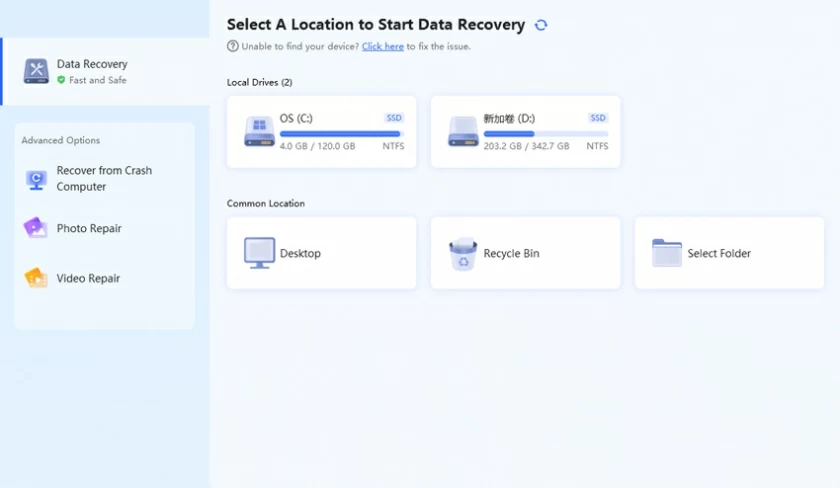
包括的な検討と比較を繰り返した結果、Geekersoft Data Recovery はは最も信頼性の高い無料のパーティション復元ソフトウェアです。Geekersoft Data Recovery は、パーティションが削除、紛失、アクセス不能、RAW になった場合に、パーティションとオーディオ、ビデオ、写真、電子メール、アーカイブ、ドキュメントなどのさまざまなファイル タイプを迅速に復元できます。Geekersoft Data Recovery は、安全で信頼性の高い独自開発の特許技術を備えており、G2 によって「データ復元ソフトウェア リーダー」にも選ばれています。
URL: https://www.geekersoft.com/geekersoft-data-recovery.html
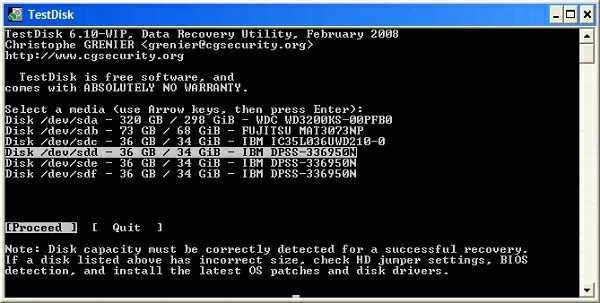
Geekersoft Data Recovery ソフトウェアと同様に、TestDisk も、ブート不可能なパーティションからデータを回復できる優れたデータ回復ツールです。TestDisk は、起動不可能なパーティションを起動可能なパーティションに変換することで、その後のデータ回復の準備をします。TestDisk は、DOS、Windows、Linux、および Mac デバイスで使用できます。PC であってもラップトップであっても、TestDisk は完璧に動作し、信頼性の高い無料のパーティショニングおよびファイル回復ソリューションです。TestDisk は、ユーザーが失われたドキュメント、マルチメディア、ビデオ、オーディオ、およびその他のファイルをパーティションから回復するのに役立ちます。ただし、サーバーや専門的かつ重要なビジネス データの回復はサポートされていません。
URL: https://www.cgsecurity.org/wiki/TestDisk
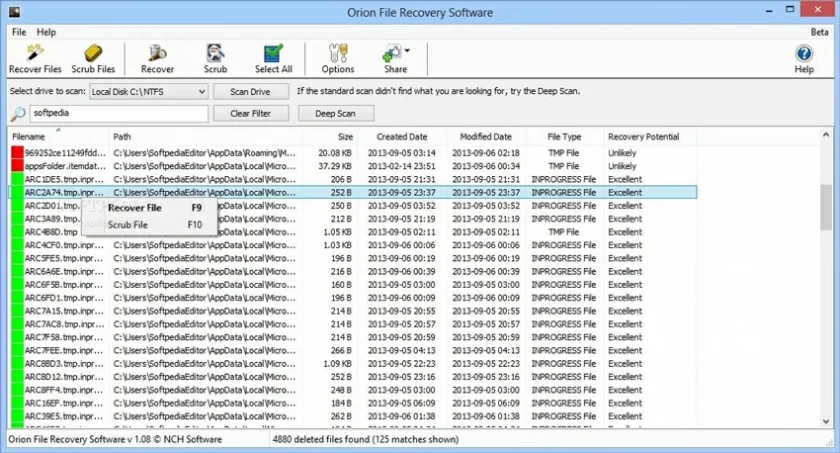
Orion File Recovery Software は、ユーザーがパーティションとデータを無料で回復できるツールでもあります。パーティション、ハードドライブ、またはストレージカードをスキャンして、失われたデータを見つけて回復できます。完全に削除されたファイルも復元できるので、非常に実用的です。コンピュータ上のパーティションが削除または紛失した場合は、Orion ファイル回復ソフトウェアを使用してデータの復元を試みることができます。
URL: https://www.cgsecurity.org/wiki/TestDisk
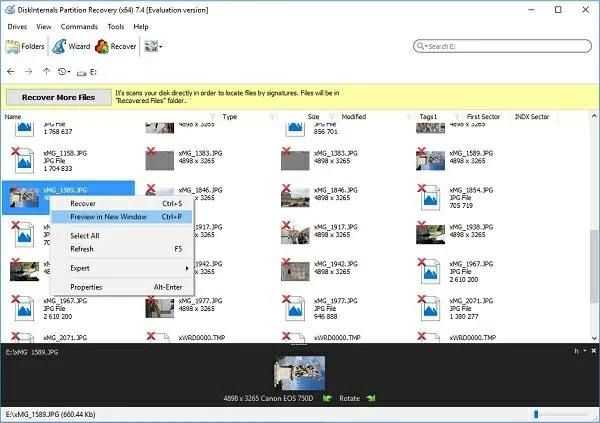
もう 1 つの優れた無料データ回復ツールは、DiskInternals Partition Recovery です。これは、削除または破損したパーティションから失われたデータを取得します。DiskInternals は Windows および Mac コンピューター用です。リーダーモードで読み取り不能なディスクにアクセスすることでデータを回復できます。ただし、DiskInternals Unlimited の使用は有料版でのみ利用可能です。
URL: https://www.diskinternals.com/partition-recovery/
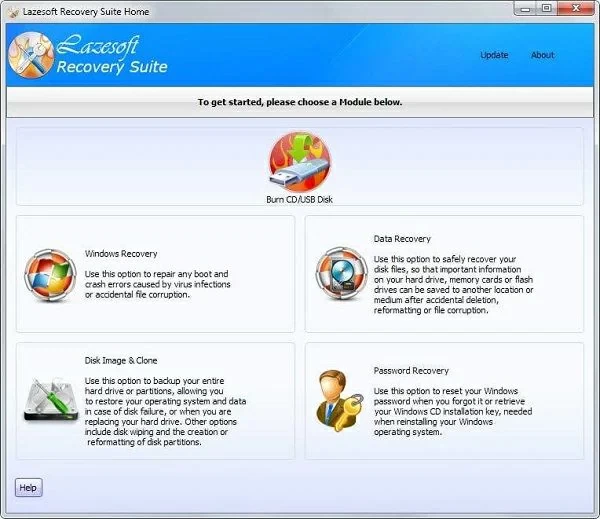
PC から削除されたファイルを回復できるソフトウェアである Lazesoft Recovery Suite を無料でダウンロードすることもできます。Windows 7、8、10などのシステムと互換性があり、アクセスできないドライブ、フラッシュドライブ、読み取り不可能なパーティション、SDカード、USBドライブからデータを回復できます。Lazesoft Recovery Suite がデータを回復するための前提条件は、失われたデータは、削除または失われたデータが新しいデータで上書きされる前に、破損したドライブまたはパーティションからのみ回復できることです。失われたパーティションやデータを回復する必要がある場合は、Lazesoft Recovery Suite をお試しください。ただし、Lazesoft Recovery Suite Commercial および Professional エディションには支払いが必要です。
URL: https://www.lazesoft.com/lazesoft-recovery-suite-free.html
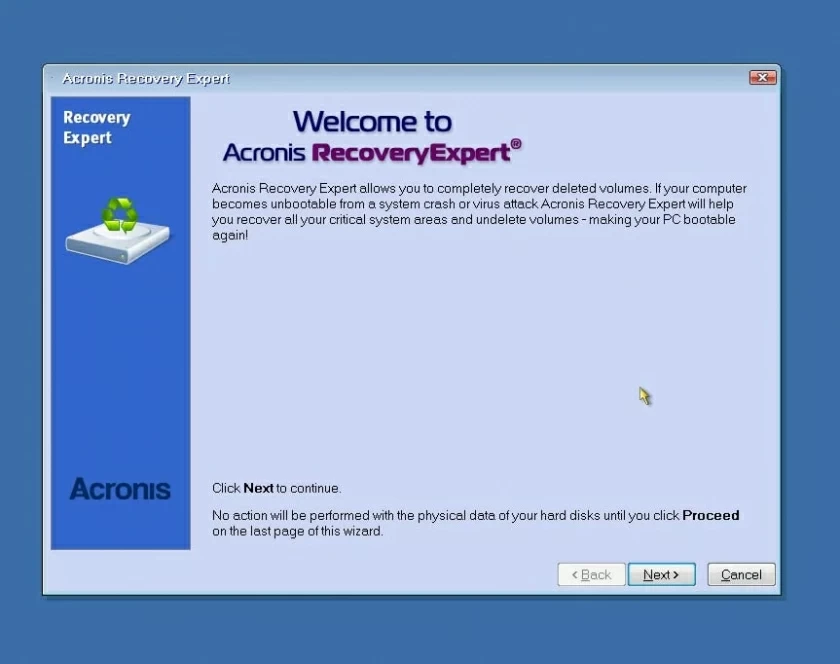
Acronis Recovery Expert Wizard も多くのユーザーに馴染みのあるものです。失われたパーティションを回復するのに役立ちます。Acronis Recovery Expert Wizard は、誤った削除、データ破損、不良セクタ、または停電によって失われたパーティションを迅速に復元できます。パーティションを手動で復元するか自動で復元するかを選択でき、非常に使いやすいです。
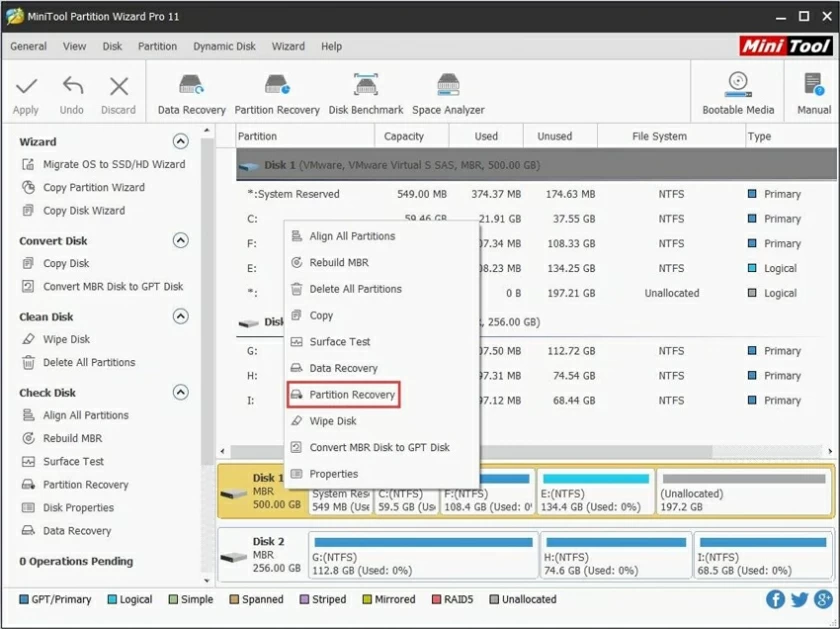
MiniTool Partition Recovery is also a very good partition recovery tool. It provides the function of recovering partitions lost due to error deletion, Windows update, virus attack, partition table damage, etc. MiniTool partition recovery can be performed through fast and deep scanning. In addition to recovering partitions and data from a PC, it also supports recovering lost partitions and data from other storage media.
URL: https://www.minitool.com/free-tools/minitool-partitionrecovery.html
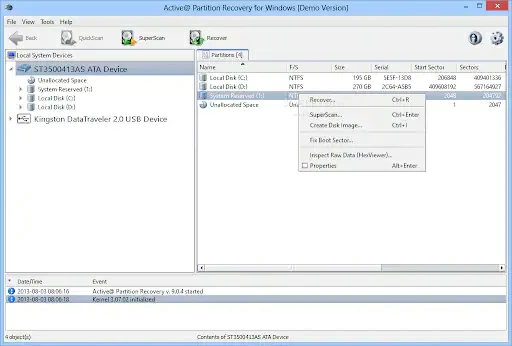
Active Partition Recovery is a data recovery software suitable for Windows, WinPE, Linux, and DOS computers. After scanning all partitions of a PC, Active Partition Recovery can recover deleted data that has not been overwritten. It provides fast scanning, super scanning, and last chance mode to help users scan and recover data. Free download for partition recovery on Windows 11, 10, 8, and 7. The commercial version of Active Partition Recovery has more advanced features and requires paid usage.
URL: https://www.easeus.com/data-recovery-software/
Disk Drill Partition Recoveryis a free partition recovery tool that is compatible with Windows and Mac, supporting the recovery of partitions and data lost due to various reasons. Disk Drill Partition Recovery supports almost all common file systems such as FAT, NTFS, exFAT, and EXT4. To easily recover lost data, try Disk Drill, which allows you to easily and effectively recover files from damaged or lost partitions.
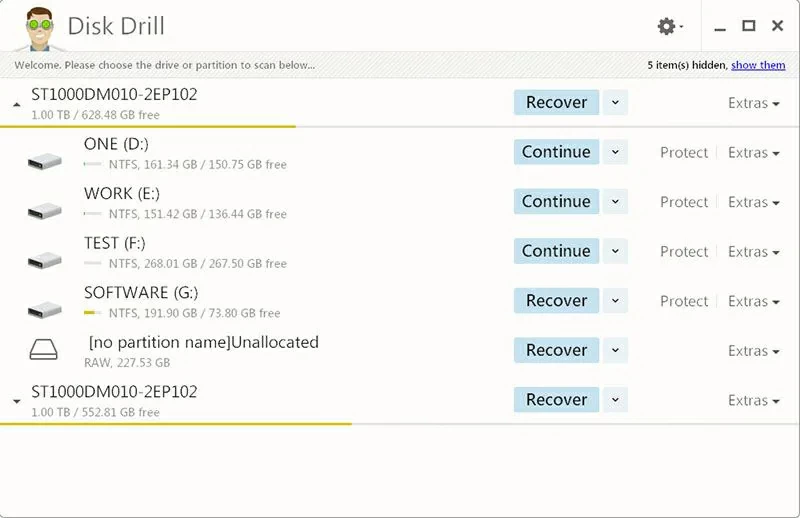
URL: https://www.cleverfiles.com/partition-data-recovery.html
Partition Find and Mount is another free partition recovery software worth sharing. It can help locate partitions and mount them onto the computer, so that lost partitions can be used as general-purpose disks or drive volumes. In addition, in the event of loss, coverage, or damage to the master boot record, Partition Find and Mount will come in handy. Partition Locating and Mounting are simple and easy to use, safe and reliable, and easy to recover lost or deleted partitions for free.
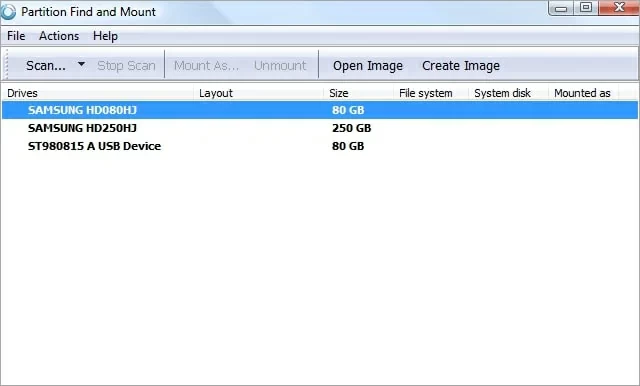
URL: http://findandmount.com/
If you do not want to recover lost partitions on a Windows 10 PC by installing third-party software, then using the diskpart.exe command-line utility to recover lost partitions is more suitable for you. In fact, DiskPart is a command-line utility in Windows PC that can manage disks, partitions, or volumes on computers running all operating system versions from Windows 2000 to 10. Specifically, users can use the DiskPart Command Prompt to perform disk partition operations, including creating, modifying, and deleting system disk partitions, and cleaning up data in internal/external hard drives, SD cards, and so on.
If you enter the wrong DiskPart command, resulting in the execution of the wrong command in the hard drive partition, or accidentally delete the partition, you need to cancel or cancel the DiskPart clean command to cancel the deletion of the partition. Take Windows 10 PC as an example, the specific steps are as follows:
Step 1 Right-click Start > Disk Management to check for missing partitions. If a partition has been lost or deleted, you will see disk space marked "unallocated."
Step 2 Run Command Prompt, enter Disk Part, and click Enter.
Step 3 Type the command "List Disks" and press Enter to view all storage devices on the system.
Step 4 Enter the command "Select Disk #" and press Enter. Note that # is replaced here with the number of the hard drive on which the lost partition needs to be recovered.
Step 5 Type: "Assign letter = H" and press Enter. Note that H is a randomly selected drive letter).
Step 6 Close the command prompt and see if you can access the missing partition.
If using diskpart.exe does not help you recover lost partitions on Windows, then we recommend using Geekersoft Data Recovery to recover lost or deleted partitions and data.
You may not be familiar with disk partitions, but you must have heard of computer C disk. When dividing a computer's hard drive into multiple parts, they are called partitions, or disk partitions. The computer's operating system manages the data in each partition separately. A disk partition is distinct from a drive, which represents a drive letter assigned to the partition. A partition is simply a logical separation from the entire hard drive.
Common causes of partition loss include accidental deletion, damage, error restore, improper partition size adjustment, partition table loss or physical damage, backtracking/sector, etc., as well as deletion of partitions of computer hard disks due to virus infection, computer system crash and unexpected system shutdown. All data present in the lost partition will be lost. In these cases, if you want to retrieve lost data, you need to retrieve the deleted partition. The free partition recovery software introduced in this article can help you achieve data recovery.
To recover lost or deleted partitions, you can use the help of partition recovery software. Partition recovery software is a solution specifically designed to recover lost or deleted partitions from computer hard drives. We know that partitions created separately on hard drives can be used to store and manage data in different regions. In addition, creating partitions can backup data in the event of system crashes or virus attacks. In case of accidental deletion, damage, error restore, improper partition size adjustment, partition table loss or physical damage, backtracking/sector, as well as virus infection, computer system crash and other reasons that result in partition loss, no longer accessible or erroneously deleted, partition recovery software is your most convenient and reliable solution. For example, Geekersoft Data Recovery can easily recover lost partitions and data stored in them, which may include Word, Excel, images, audio, video, and other data.
The above is the Top 10 Reliable Free Partition Recovery Softwares we have introduced to you. You can choose based on their respective performance, recovery success rate, security, etc. The Geekersoft Data Recovery interface is simple, easy to use, and has strong data recovery ability and fast speed. It supports the recovery of raw partitions and data of different file types that have been lost due to various reasons. You can also preview before restoring, providing targeted and efficient recovery. Geekersoft Data Recovery places great emphasis on data security, and you can use it with confidence. To perform partitioning and data recovery, Geekersoft Data Recovery is the first choice for millions of users.