
2023年3月9日、午後8時37分にキャメロンによって更新されました
オンライン作業の人気の高まりに伴い、画面ビデオはビデオコース、プレゼンテーション、オンライン会議や講義だけでなく、ゲームプレイなどの他の重要な仕事や生活シーンのキャプチャにも広く使用されています。多くのユーザーは、Windows 10/11 に画面上のアクティビティをキャプチャするために使用できるゲーム バーが組み込まれていることを知っています。しかし、多くのユーザーにとって、それだけでは十分ではありません。ただし、多くのユーザーにとって、これでは十分ではありません。Windows 10/11 システムで画面を録画するニーズを満たすには、よりプロフェッショナルで強力な高度なビデオ キャプチャ ツールが必要です。時間とエネルギーを節約するために、繰り返しの試行と包括的な比較を経て、お気に入りの Windows 10/11 スクリーン レコーダーを最短時間で見つけることができ、業界トップ 10 のスクリーン ビデオ レコーダーをリストしました。お役に立てれば幸いです。これらのビデオ レコーダーには、XBox では満たせない機能が備わっています。それらの中には、一流の機能を備えた無料のビデオレコーダーもあれば、有料のプロ仕様のビデオレコーダーもあります。みてみましょう。
推奨製品:スクリーンレコーダー。
Windows 10/11 での画面録画は、録画されたビデオによる情報の送信と共有を最適化し、職場や家庭での生産性を向上させるため、多くのユーザーにとって基本的なスキルです。たとえば、特定の分野の専門家として、オンラインの講義や会議に出席する必要がある場合があります。経験豊富なゲーマーは、特定のゲーム操作を記録して共有したいと思うかもしれません。無料のビデオ レコーダーでグループ FaceTime 通話を録画し、保存して家族や友人と共有できます。現在、多くの無料ビデオレコーダーは、有料ソフトウェアに劣らない非常に強力な機能を備えています。
Windows ゲーム バー (Xbox ゲーム バー) は、無料で利用できる Windows 10 内蔵のオンスクリーン ビデオ レコーダーです。操作インターフェイスはシンプルでスムーズで、ユーザーエクスペリエンスは非常に優れており、ユーザーはコントロールを簡単にカスタマイズすることもできます。名前が示すように、Xbox ゲーム バーはほとんどの PC ゲームと完全に互換性があり、ワンクリックでさまざまなゲーム ウィジェットにアクセスできます。ゲーム体験を向上させるために、Xbox ゲーム バーには画面上のビデオをキャプチャして共有する機能があります。ユーザーは、録画したビデオにトリムやナレーションを加えて磨きをかけることもできます。もちろん、現在のアクションを他のプラットフォームでリアルタイムに共有したい場合は、インスタント共有を使用できます。さらに、LFG 機能を使用すると、ゲームの新しいチームメイトを見つけることができるため、ゲームを終了することなく Xbox 本体または PC を介して友達とチャットできます。
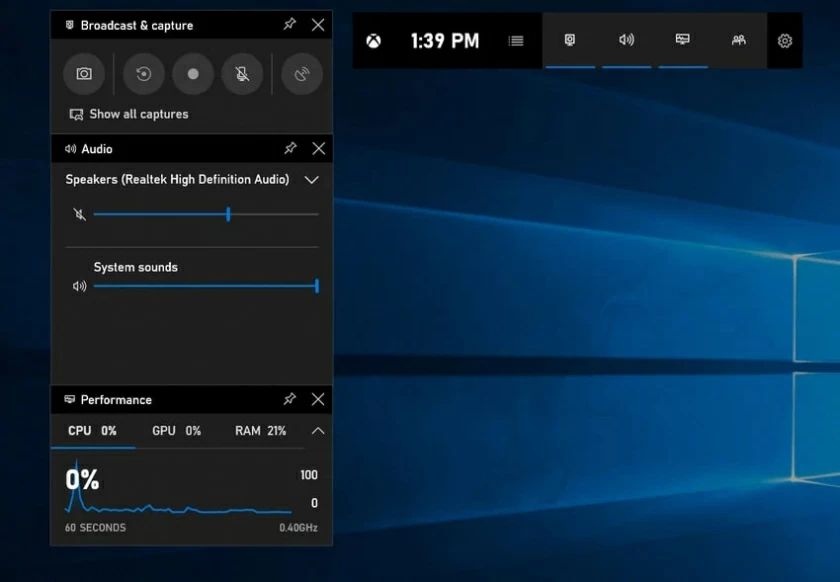
プロフェッショナルなスクリーンレコーダーは、高いビデオ品質基準を満たします。Windows ゲーム バーをアクティブにすると、会議や講義などを記録するのに役立ちます。
ステップ 1 Windows 10/11 App Store から Windows 10/11 ゲーム バーをダウンロード、インストールし、起動します。App Store で Xbox Game Bar を検索してください。
ステップ 2 Windows アプリケーションに移動してゲーム バーをアクティブにするか、ショートカット キー「Windows + G」を使用してゲーム バーのフローティング ウィジェットを起動します。
ステップ 3 Windows ゲーム バーのメイン インターフェイスにある [開始または停止] ボタンをクリックして、画面を録画します。または、ショートカット キー「Alt+R+Windows」を同時に押したままにして、画面録画プロセスを開始します。
画面録画後、必要に応じてビデオ ファイルの名前を変更または削除したり、トリミングしたり、ナレーションを追加したりできます。さらに、録画中にスクリーンショットを撮ったり、マイクやカメラを使用したりするなど、他の機能を使用することもできます。また、ラジオ録音機能を使用すると、あらゆるソーシャル メディアでライブ放送することができます。
Windows ゲーム バーは、バックグラウンド録画を通じて画面の隅々まで完璧に録画します。ビデオとオーディオ出力の品質は非常に高く、多くのユーザーが非常に満足しています。
ゲーム編集機能は、ユーザーが録画時間と録画品質をカスタマイズするのに役立ちます。関連するパラメータを設定すると、Windows ゲーム バーにより、連続画面録画または高品質ストリーミング メディア再生のためのフローティング ウィンドウが有効になります。
Windows Game Bar には強力な技術的背景があります。プログラミング後、ユーザーはショートカット キーを使用してブロードキャストを開始または一時停止したり、別のショートカット キーを使用してマイクまたはカメラをオンまたはオフにしたりできます。
キーボード ショートカットによって実行されるタスク
Windows+G ゲームバーをアクティブにする
Windows+Alt+R 録音の開始または停止
Windows+Alt+B ブロードキャストの開始または一時停止
Windows+Alt+M マイクのオン/オフを切り替える
Windows+Alt+PrtSc スクリーンショット
Windows+Alt+G 録音の設定
Windows+Alt+W ブロードキャストでカメラを表示
Screen Recorder は、業界で最高の Windows 10/11 無料スクリーン レコーダーの 1 つで、完全に無料です。Screen Recorder のデザインは非常に直感的で、インターフェイスはシンプルです。あらゆるプロフェッショナルな画面録画のニーズを満たすことができます。
Screen Recorder は、ユーザーがすべてのコンピュータ画面を記録できるようにするだけでなく、特定の領域または PC 上で実行されているアプリケーションの記録もサポートします。さらに、ウェブカメラ、音声録音、カーソル追跡もサポートしており、非常にプロフェッショナルです。
Windows10/11のスクリーンレコーダーを使用して、以下のように画面を録画します。
ステップ 1 Windows10/11 にスクリーンレコーダーをダウンロード、インストールし、起動します。
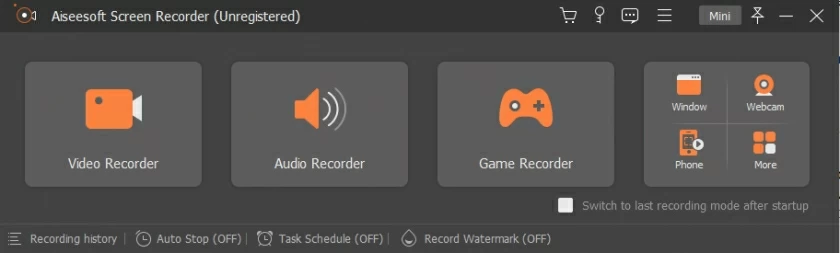
ステップ 2 録画する前に、ユーザーはビデオとオーディオの品質パラメータをカスタマイズできます。次に、録音を開始します。
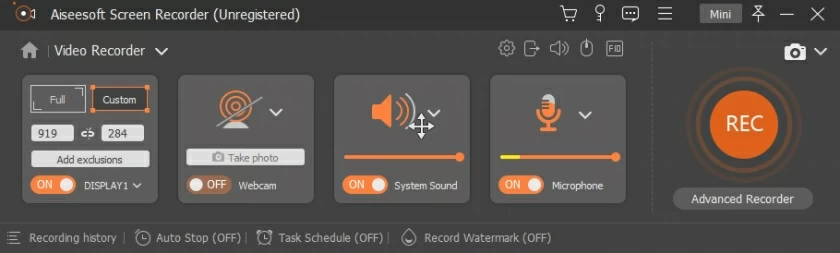
ステップ 3 録画が完了すると、ユーザーは録画されたビデオ ファイルの名前を変更したり、コメントしたり、ナレーションを追加したりできます。
チュートリアル、ビデオプレゼンテーション、プレゼンテーションの作成、マーケティングビデオ、ゲームの録画などのために画面を録画したい場合は、Windows 10/11用の画面録画ソフトウェア—プログラムの無料バージョンであるFree Online Screen Recorderがあります。ユーザーは録音時間制限なしで利用できます。ウェブカメラ、画面、音声の録画をサポートします。MP4、AVI、WMV などの出力形式を選択して、画面上のビデオを録画でき、透かしがなく、非常に便利です。PowerPointを使わずに画面を録画します。さらに、モニターをまたいだ複数画面の録画もサポートされており、これは非常に魅力的です。Windows XP 以降では、ユーザーに最高のエクスペリエンスを提供できます。
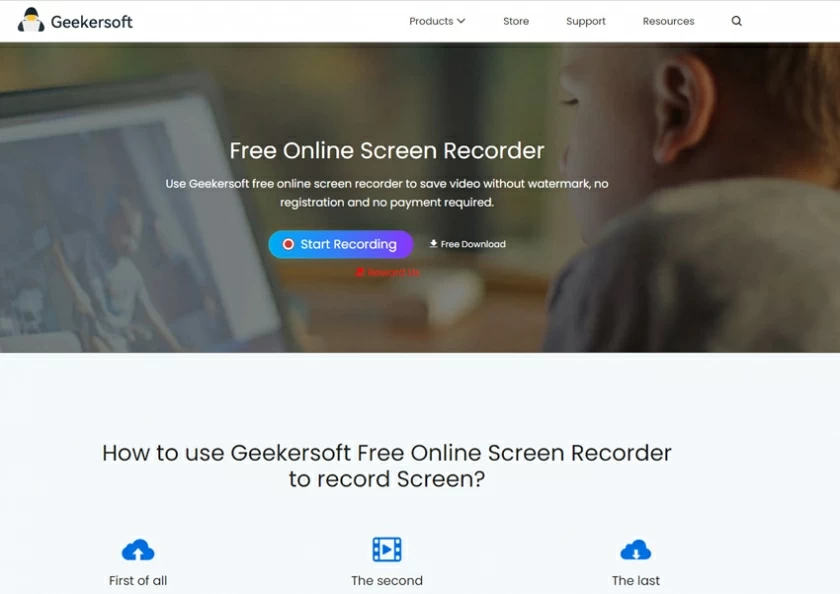
無料のオンライン スクリーン レコーダーは使いやすく、特定のアプリなどの録画画面範囲の独立した選択をサポートしています。ゲームユーザー向けに特別に設計されており、複数のモニターで録画できるため、非常に優れています。また、録画されたビデオや録音には時間制限やウォーターマークはありません。ただし、動画編集機能がないのが難点です。また、一部の機能は有料となります。
開発者や上級ユーザーには、ShaeX の方が適しています。ShareX は、多くの高度な編集ツールを備えたオープン ソース プログラムです。その操作は比較的複雑で、初心者にとってはフレンドリーではありません。WorkFlow 機能により高度なカスタマイズが可能で、いくつかの一般的なタスクを実際に自動化できます。ShareX は、強力な機能とテクノロジー フローを備えた Windows 10/11 用の最高の無料画面ビデオ レコーダーの 1 つです。
ShareX を PC にインストールして起動したら、ショートカット キーを使用するだけで、画面キャプチャの開始や領域の選択、画像の自動保存、クラウドへの直接アップロード、オンライン共有などが可能です。ShareX は無料で使用できます。
Windows 10/11 用 ShareX では、コンピュータからメディアを簡単にインポートできます。画面全体、画面の一部、または特定のプログラムを自由に録画することができます。録画したビデオにカラー効果や透かしを追加できます。録画した画面ビデオの URL を友人やパーティ A と共有することもできます。ただし、ShareX は Web カメラ録画をサポートしていません。
Windows 10/11 用の無料画面ビデオについては、Free Cam について言及する必要があります。これは、ポップアップ広告のない無料の画面録画プログラムです。Free Cam のインターフェースはシンプルで直感的で使いやすいです。ビデオとオーディオの編集機能があり、録画したビデオをさらに加工して制作することができます。
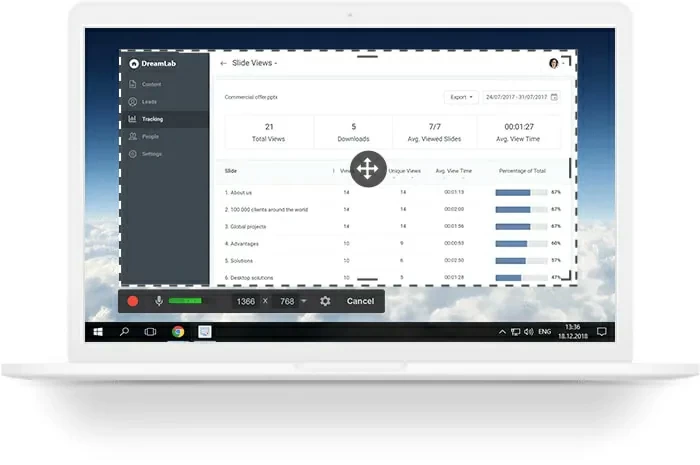
Free Cam は、単一のプログラム ウィンドウ、画面全体、選択した領域など、特定の領域の録画のカスタマイズをサポートしています。画面ビデオの録画に加えて、Free Cam を使用してナレーション、システム サウンド、バックグラウンド ミュージック、ハイライト マウスなどを録音することもできます。さらに、録画したビデオは、YouTube などの人気のソーシャル メディア プラットフォームに直接共有することもできます。 PC にローカルに保存されます。
Free Cam can get rid of the background noise of recorded video and also support high-resolution screen recording. You can trim parts, eliminate noise and edit audio through special functions. Then, upload the recorded screen video to YouTube with one click, which is very convenient. Unfortunately, Free Cam does not support recording webcams.
If you don't often need to record screens, CamStudio might be a good choice. CamStudio is a free open source program with several basic editing functions. Its recorded screen videos are exported in AVI media file format and compressed. Therefore, it is very practical for users. It claims to be one of the best free screen capture software. In addition, CamStudio also has the functions of capturing screen, webcam, system audio and video compression, and adding captions and annotations for videos. The quality of screen recording video output by CamStudio is highly praised by users.
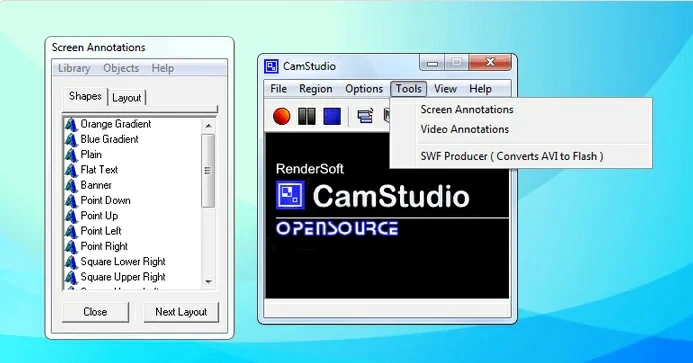
This application supports custom output video quality. It also provides selected video style functions for users to choose. You can record the screen without file length or size limit. However, CamStudio does not have animation and interaction functions. Its recorded screen video can only be output to AVI and then converted to Flash.
How can free screen recorders for Windows 10/11 computers without TinyTake. This is a cloud-based video recording software that allows you to store your screen footage safely. This tool allows users to edit, annotate and add comments to images and videos. You can choose whether to record the entire screen or parts of it, and the finished video can be shared with one click. A maximum of 2GB can be shared at a time.
For recorded screen video, you can mark, add text boxes, highlight or arrows, and blur out the screen part containing sensitive information. TinyTake supports recording videos up to 120 minutes in length. Tiny Take's built-in free online file viewer allows you to play videos, view images, read documents, and so on.
This application supports batch sharing of screen recording files. Its free cloud storage function is loved by many users. Unfortunately, TinyTake only supports session screen recording limited to 5 minutes.
In addition to these free video recorders, you can also choose to pay for a Windows 10 video recorder. They have numerous video editing features that make your screen recording experience even better.
The DemoCreator supported by Wondershare is one of the top audio screen recorders for Windows 10/11. It allows users to capture both the computer screen and the webcam. It also includes a video editor, which provides a large number of video templates and effects for users to choose. In addition, its screen drawing tools and spotlights let you annotate when recording, such as text and other symbols. You can also adjust the size, shape and color of the cursor.
Free Trial for Win Free Trial for Mac
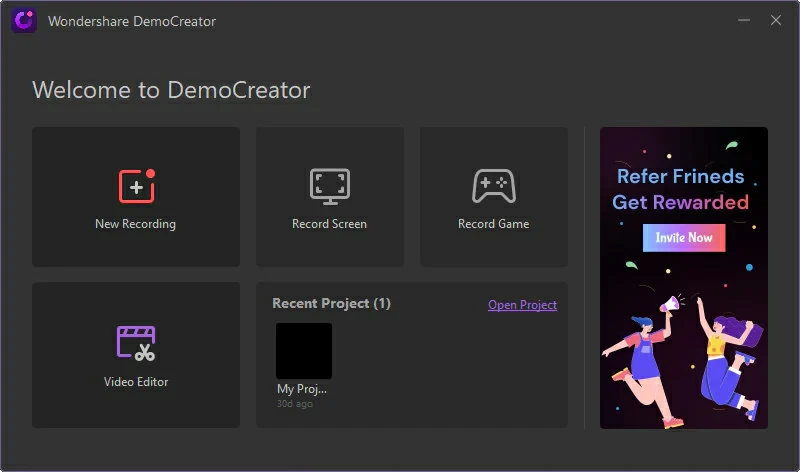
DemoCreator can record high-definition and even 4K videos. Its zooming system works very well, maintaining the quality of the video recording even after zooming. It supports the output of multiple file formats and can live stream videos on all major video platforms. The new version of DemoCreator even offers built-in avatars to enhance video presentation.
Once DemoCreator has been downloaded and installed on your Windows 10/11 computer, you can start your screen recording by clicking the Record option in the main screen. In addition, you can set the recording Settings and parameters according to your needs, including the recording area, frame rate, audio and webcam Settings.
Among many top screen recording softwares for Windows 10/11, Camtasia is a paid App that has to be mentioned. With Camtasia, you can record any content on the screen, such as online lectures, presentations, video calls, online courses, websites, applications, games. Camtasia supports recording webcams, microphones, and other sound devices. You can add text, music and other special effects to the recorded screen video using the advanced editing tools built in Camtasia. Of course, there is a simpler way to match the appropriate title and title from Camtasia's built-in royalty-free sound library according to the theme of the recorded video, which will make the recorded screen video look more professional. This is an easy to use screen recording software, even beginners should try. Because it provides you with detailed tutorial support.
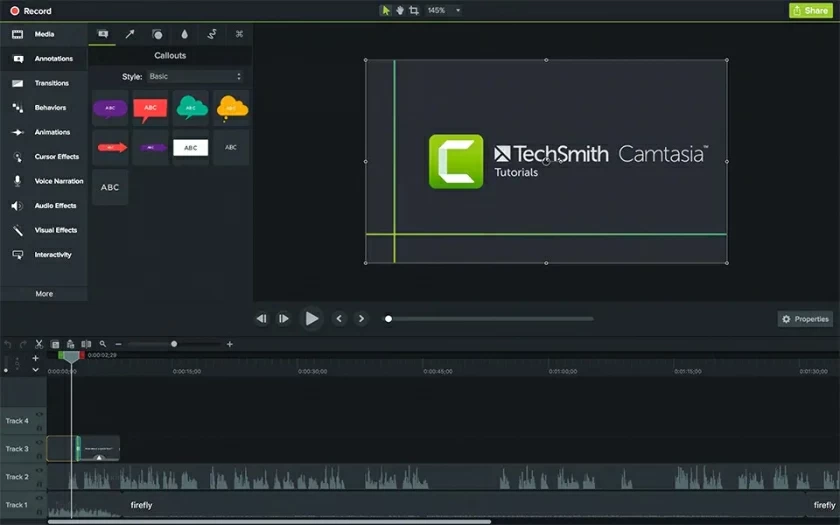
If you need to add comments to the recorded screen video, Camtasia allows you to adjust the cursor using highlighting, spotlight, zoom in and other options. This operation is also very simple. In addition to supporting video recording and editing, Camtasia also has social sharing function. Recorded and edited videos can be uploaded directly to almost all video sharing platforms. However, Camtasia is also one of the most expensive Windows 10/11 screen recording tools in the industry, which does not affect its huge user base.
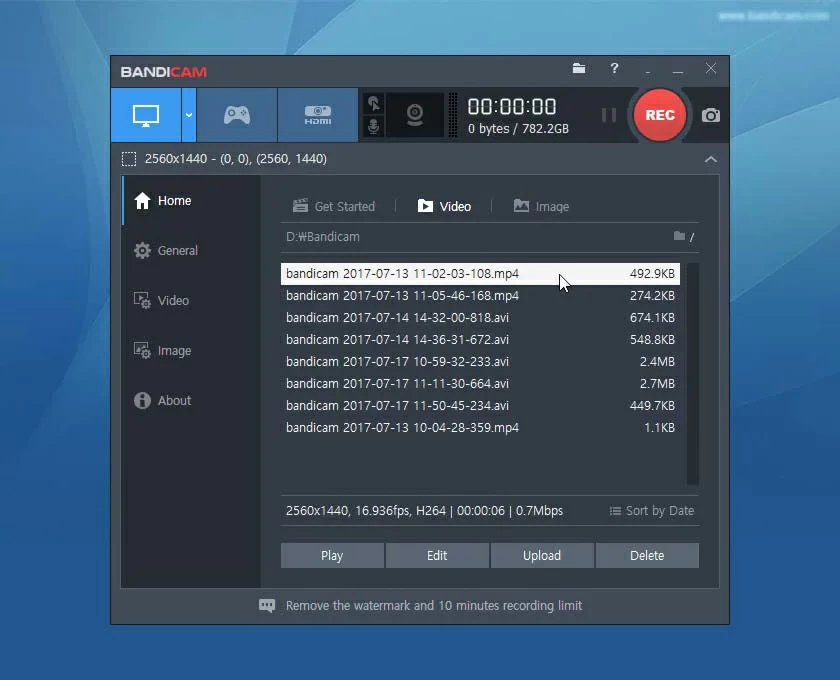
Bandicam is the Windows 10/11 screen recording tool that veteran gamers can't miss. This is a game recording tool designed for game lovers. Similar to other screen recording software, it can record the entire screen, part of the screen, specific applications, webcam and other devices. In addition, Bandicam has a game recording mode, which provides users with more choices, which is very user-friendly.
You can add brand logos and images, text, animation effects, etc. to the recorded screen video. In addition, Bandicam is different from most other screen recording tools in that it supports the output of high shrinkage video. However, the output video format Bandicam's is limited.
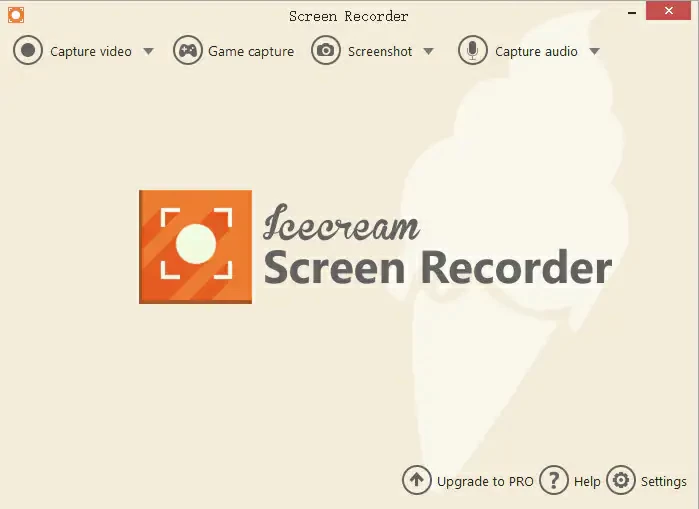
Icecream は、無料版と有料版があるプロ仕様の画面録画ソフトウェアです。無料版は 1 つの出力形式のみをサポートしますが、有料版は AVI、MP4、MOV などの複数の出力形式をサポートします。Icecream の特徴は、必要に応じて録画計画を立て、ウォーターマークをカスタマイズできることです。PC画面とマイクとウェブカメラの両方を録画できます。
Icecream には、録画したビデオを作成および処理できる編集ツールがあります。たとえば、基本的なトリミングとシャーリングです。さらに、Icecream の有料版には、ビデオにメモや字幕を追加できるエディターが組み込まれています。Windows 10/11 では、Icecream を使用して、拡大および描画中に PC の画面全体を録画できます。操作も非常にシンプルなので、初心者でも簡単に始めることができます。ただし、ユーザーからは、Icecream のオーディオ品質はスムーズではない場合があり、ビデオ編集ツールは非常に限られているというフィードバックがあります。
Windows 10/11 では、内蔵ゲーム バー (Xbox ゲーム バー) を使用して画面録画を完了できます。ウォーターマークなしで画面ビデオを録画したい場合は、Win 10/11 用のスクリーン レコーダーをインストールすることをお勧めします。スクリーンレコーダーを使用すると、無料でウォーターマークなしの画面を録画できます。
業界にはWindows 10/11に適したスクリーンレコーダーがたくさんありますが、無料の画面録画ツールが必要な場合は、スクリーンレコーダーを試してください。すべてのコンピュータ画面を録画できるだけでなく、特定の領域または PC 上で実行されているアプリケーションの録画もサポートします。さらに、ウェブカメラ、音声録音、カーソル追跡もサポートしており、非常にプロフェッショナルです。
一般的に、Windows 10/11 スクリーンレコーダーのデフォルトの録画時間は 2 時間です。ただし、30分、1時間、さらには3時間など、自分で時間を設定することもできます。
この記事では、2 種類のスクリーンレコーダーを詳しく紹介します。その中には、Windows 10/11 に組み込まれた画面ビデオ レコーダー、ゲーム バー (Xbox ゲーム バー) があります。他にも、Screen Recorder など、無料の画面録画ツールが 6 つあります。さらに、有料で利用できるスクリーン キャプチャ レコーダーが 4 つあります。自分のニーズに応じて選択できます。この記事がお役に立てば幸いです。